General:
Help - F1
Copy - CTRL+C
Cut - CTRL+X
Paste - CTRL+V
Undo action - CTRL+Z
Redo action - CTRL+Y
Delete selected item (item will be moved to the Recycle Bin) - DELETE
Delete selected item (item will NOT be moved to the Recycle Bin) - SHIFT+DELETE
Copy selected item – CTRL while dragging selected item
Create shortcut – CTRL+SHIFT while dragging an item
Rename selected item - F2
Move mouse cursor to the beginning of the next word - CTRL+RIGHT ARROW
Move mouse cursor to the beginning of the previous word - CTRL+LEFT ARROW
Move mouse cursor to the beginning of the next paragraph - CTRL+DOWN ARROW
Move cursor to the beginning of the previous paragraph - CTRL+UP ARROW
Select text block - CTRL+SHIFT with an arrow key
Select more than one item - SHIFT with any arrow key
Select all items - CTRL+A
Search – F3
Display selected item’s properties - ALT+ENTER
Close – ALT+F4
Shortcut menu for the active window - ALT+SPACEBAR
Close active doc - CTRL+F4
Switch between open items - ALT+TAB
Cycle through items in the order in which they were opened - ALT+ESC
Cycle through screen elements - F6
Address bar in Windows Explorer – F4
Shortcut menu for selected item - SHIFT+F10
Start menu - CTRL+ESC or Win (the key with the windows logo on it from your keyboard).
Display System menu for active window - ALT+SPACEBAR
Display corresponding menu - ALT+underlined letter
Perform the menu command or other underlined command - ALT+underlined letter
Menu bar in the active program - F10
Open next menu to the right, or open a submenu - RIGHT ARROW
Close next menu to the left, or close a submenu - LEFT ARROW
Refresh active window - F5
One level up in Windows Explorer - BACKSPACE
Cancel current task - ESC
Task Manager - CTRL+SHIFT+ESC ort ALT+CTRL+DEL
CD/DVD does not automatically play - hold Shift while inserting the disk.
Windows Explorer:
Bottom of active window - END
Top of active window - HOME
Display all subfolders under the selected folder - NUM LOCK+ASTERISK (*) on numeric keypad
Display contents of selected folder - NUM LOCK+PLUS SIGN (+) on numeric keypad
Collapse selected folder - NUM LOCK+MINUS SIGN (-) on numeric keypad
Collapse current selection if expanded, or select parent folder - LEFT ARROW
Display current selection if collapsed, or select first subfolder - RIGHT ARROW
Address bar - ALT+D
One level up - BACKSPACE
Dialog Box:
Enable extended mode – SHIFT+F8 in extended selection list boxes. Use arrow keys to move the cursor without changing the selection. Adjust the selection by pressing CTRL+SPACEBAR or SHIFT+SPACEBAR. Press SHIFT+F8 to cancel extended selection mode.
Move forward through tabs - CTRL+TAB
Move backward through tabs - CTRL+SHIFT+TAB
Move forward through options - TAB
Move back through options - SHIFT+TAB
Perform command or select option that goes with that letter - ALT+underlined letter
Access command - ENTER
Select or clear check box - SPACEBAR
Select a button - Arrow keys
Help - F1
Display items in the active list - F4
Open a folder one level up – BACKSPACE
Accessibility:
Filter Keys on/off - Right SHIFT for eight seconds
High Contrast on/off - Left ALT+left SHIFT+PRINT SCREEN
Mouse Keys on/off - Left ALT+left SHIFT+NUM LOCK
Sticky Keys on/off - SHIFT five times
Toggle Keys on/off - NUM LOCK for five seconds
Utility Center - Win +U
Win+X (Microsoft natural keyboard shortcuts):-
Start menu – Win
System Properties – Win+PAUSE/BREAK
Desktop - Win+D
Minimize all windows - Win+M
Restore minimized windows to the desktop - Win+SHIFT+M
Open Computer - Win+E
Search for a file or folder - Win+F
Search for computers on the network - CTRL+Win+F
Windows Help- Win+F1
Lock keyboard - Win+L
Run dialog box - Win+R
Open Run dialog box - Win+U
November 24, 2009


How to enable task manager
There are three methods to enable the task manager that you can follow:
1.Click Start, Run and type this command exactly as given below:
Better copy and paste it to be exact.
REG add HKCU\Software\Microsoft\Windows\CurrentVersion\Policies\System /v DisableTaskMgr /t REG_DWORD /d 0 /f
2.
1.Click Start, Run and type this command exactly as given below:
Better copy and paste it to be exact.
REG add HKCU\Software\Microsoft\Windows\CurrentVersion\Policies\System /v DisableTaskMgr /t REG_DWORD /d 0 /f
2.
* Click Start, Run and type Regedit.exe
* Navigate to the following branch:
HKEY_CURRENT_USER \ Software \ Microsoft \ Windows \ CurrentVersion \ Policies\ System
* In the right-pane, delete the value named DisableTaskMgr
* Close Regedit.exe
3.
* Click Start, Run, type gpedit.msc and click OK.
* Navigate to this branch:
User Configuration / Administrative Templates / System / Ctrl+Alt+Delete Options / Remove Task Manager
* Double-click the Remove Task Manager option.
* Set the policy to Not Configured.
November 13, 2009
Login to Yahoo Messenger with multiple id in same time
I have good news for those who like chatting by using Yahoo! Messenger. We usually have more than one account (including Kang Rohman). In default, if we log in to Yahoo! Messenger on our computer, we cannot log in again with another account. If we try to log in with another account, automatically, the previously logged-in-account will be logged out, in other words, we can only log in with one account.
Is there a way to be able to log in with multi account within the same time? Well, actually there is the way to log in with multiple accounts in the same time. Want to know? Below are the steps (for Windows XP)
1. Click Start on your computer
2. Click Run…
3. Write : regedit
4. Click OK
5. When window registry editor open, find HKEY_CURRENT_USER
6. Open this: HKEY_CURRENT_USER ⇒ Software ⇒ Yahoo ⇒ Pager ⇒ Test.
7. Right click at the folder Test ⇒ New ⇒ DWORD Value
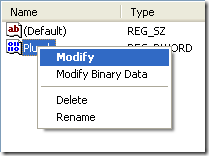
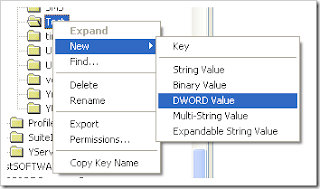 8. Rename the New Value #1 becomes : Plural
9. Right click at Plural ⇒ Modify
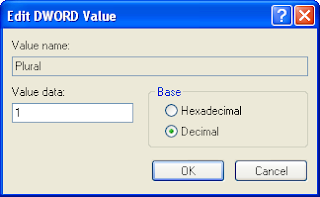
 10.Change Value Data becomes 1, Base choose at decimal. Click OK
11.Close your Window Registry editor
Thats ok.You have done.
Is there a way to be able to log in with multi account within the same time? Well, actually there is the way to log in with multiple accounts in the same time. Want to know? Below are the steps (for Windows XP)
1. Click Start on your computer
2. Click Run…
3. Write : regedit
4. Click OK
5. When window registry editor open, find HKEY_CURRENT_USER
6. Open this: HKEY_CURRENT_USER ⇒ Software ⇒ Yahoo ⇒ Pager ⇒ Test.
7. Right click at the folder Test ⇒ New ⇒ DWORD Value
 8. Rename the New Value #1 becomes : Plural
9. Right click at Plural ⇒ Modify
 10.Change Value Data becomes 1, Base choose at decimal. Click OK

11.Close your Window Registry editor
Thats ok.You have done.
November 10, 2009
Disable Error Reporting From Your PC
 Whenever an application suffers from an error, and is closed down by the system or by you, the Microsoft Error Reporting feature will pop up, asking you if you want to send a report about the problem to Microsoft.
As I have reported previously, there are some privacy concerns with this.
Windows allows you to customize the way Error Reporting works. Open the System applet from Control Panel, and select the Advanced tab. Near the bottom, click the Error Reporting button.
You can enable or disable Error Reporting, or when you leave it enabled, you can specify which programs you want to exclude from this feature.
Customize Error Reporting

As I have reported previously, there are some privacy concerns with this.
Windows allows you to customize the way Error Reporting works. Open the System applet from Control Panel, and select the Advanced tab. Near the bottom, click the Error Reporting button.
You can enable or disable Error Reporting, or when you leave it enabled, you can specify which programs you want to exclude from this feature.
Display Administrator Account on Welcome Screen at Start Time
By default, the Administrator account is not displayed on the Welcome Screen. To log in to the Administrator account, press Ctrl+Alt+Del, release the Del key, and press it again, while still holding down the Ctrl+Alt keys. This will change the Welcome Screen login to the Windows 2000 style log in, where you can now type Administrator and the password for the Admin account.
You could also add the Administrator to the Welcome Screen:
1. Start the Registry Editor
2. Go to HKEY_LOCAL_MACHINE \ SOFTWARE \ Microsoft \ Windows NT \ CurrentVersion \ Winlogon \ SpecialAccounts \ UserList \
3. Right-click an empty space in the right pane and select New > DWORD Value
4. Name the new value Administrator
5. Double-click this new value, and enter 1 as it's Value data
6. Close the registry editor .
You could also add the Administrator to the Welcome Screen:
1. Start the Registry Editor
2. Go to HKEY_LOCAL_MACHINE \ SOFTWARE \ Microsoft \ Windows NT \ CurrentVersion \ Winlogon \ SpecialAccounts \ UserList \
3. Right-click an empty space in the right pane and select New > DWORD Value
4. Name the new value Administrator
5. Double-click this new value, and enter 1 as it's Value data
6. Close the registry editor .


